Once your TV Server or HD Encoder appliance has been commissioned, check that it is correctly streaming.
Prerequisites
You'll need a media player capable of rendering RTSP streams, for example VLC media player 🔗
Procedure
- Visit your server's web administration page. The Status node will be selected by default in the left hand navigation pane.
- Tap the All Channels tab to show all the available channels together. For a channel to be visible on your network, it needs to show a non-zero bitrate in both the Data In and Data Out columns.
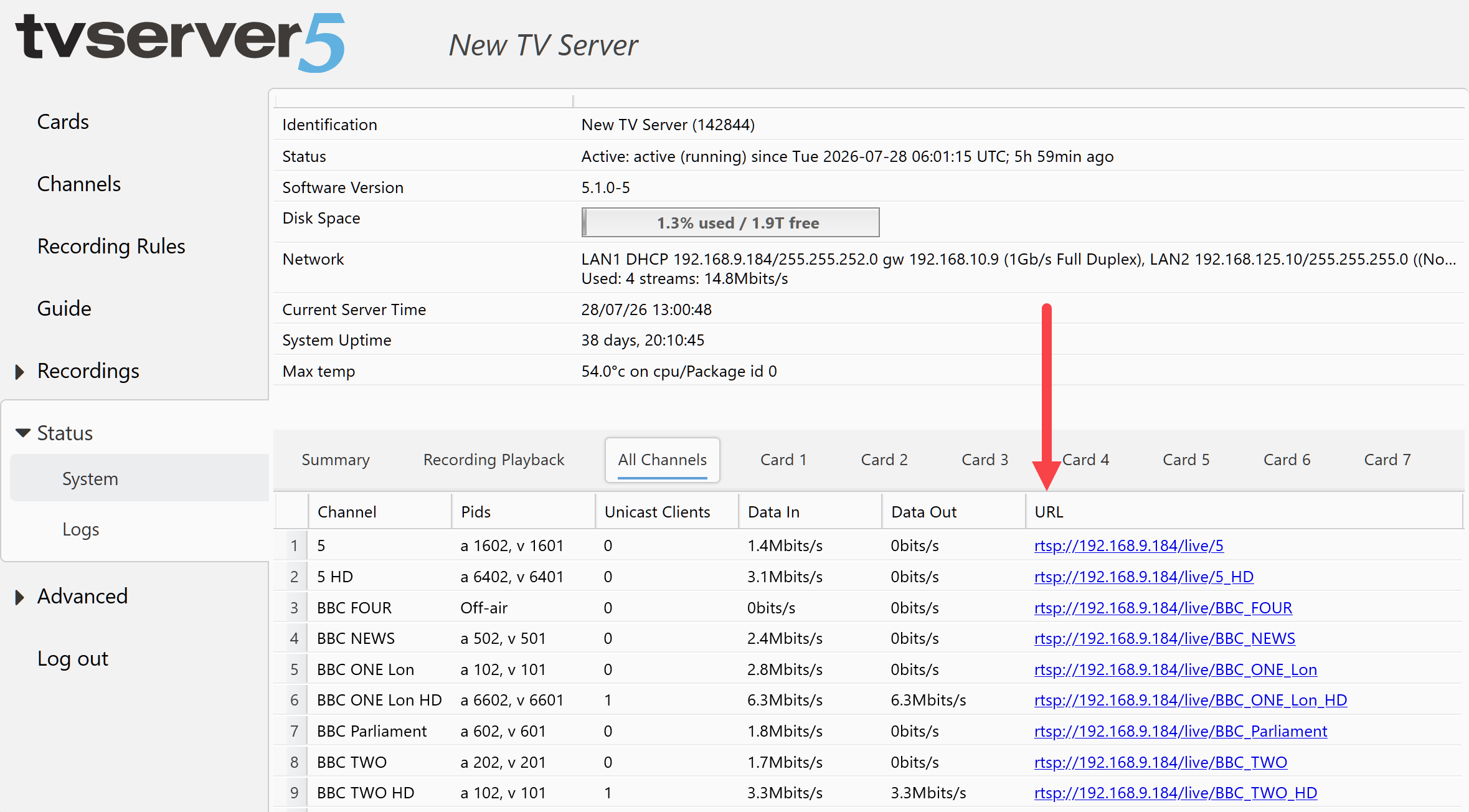
- Click or copy the RTSP links in the URL column. These links will show the corresponding TV channel in your chosen media player.
Considerations
- If the desktop or laptop you're using to view the server's streams is not on the same vlan, it is unlikely they will connect
- A firewall blocking RTSP port will also prevent playback of any selected stream

